


Flux AI
One AI hub for every FluxWP plugin: keys, models, costs, limits and a shared chat.
Flux AI is the shared AI layer of the FluxWP packages. OpenRouter and Anthropic keys, the model catalogue and prices, prompt caching, a tool registry, usage logs, billing and spending limits live here once; Flux Chat, Flux Mail, Flux Social, Flux Lang, Flux Studio and the rest call it instead of talking to AI providers themselves. Authorised users also get a streaming AI chat in the admin that can use those tools.
- Free and open source (GPL)
- WordPress 6.5+ · PHP 7.4+
- English & Turkish
- Admin & platform
Flux AI in action
The real plugin, real screens. A short tour.
Why Flux AI?
When every plugin brings its own AI connection, you end up with keys in five settings pages, no idea what the month costs, and no way to stop a runaway loop at 3 a.m. Flux AI puts one layer in between:
-
Keys in one place
OpenRouter and Anthropic keys are entered once, stored encrypted and never sent to the browser.
-
Costs you can see and cap
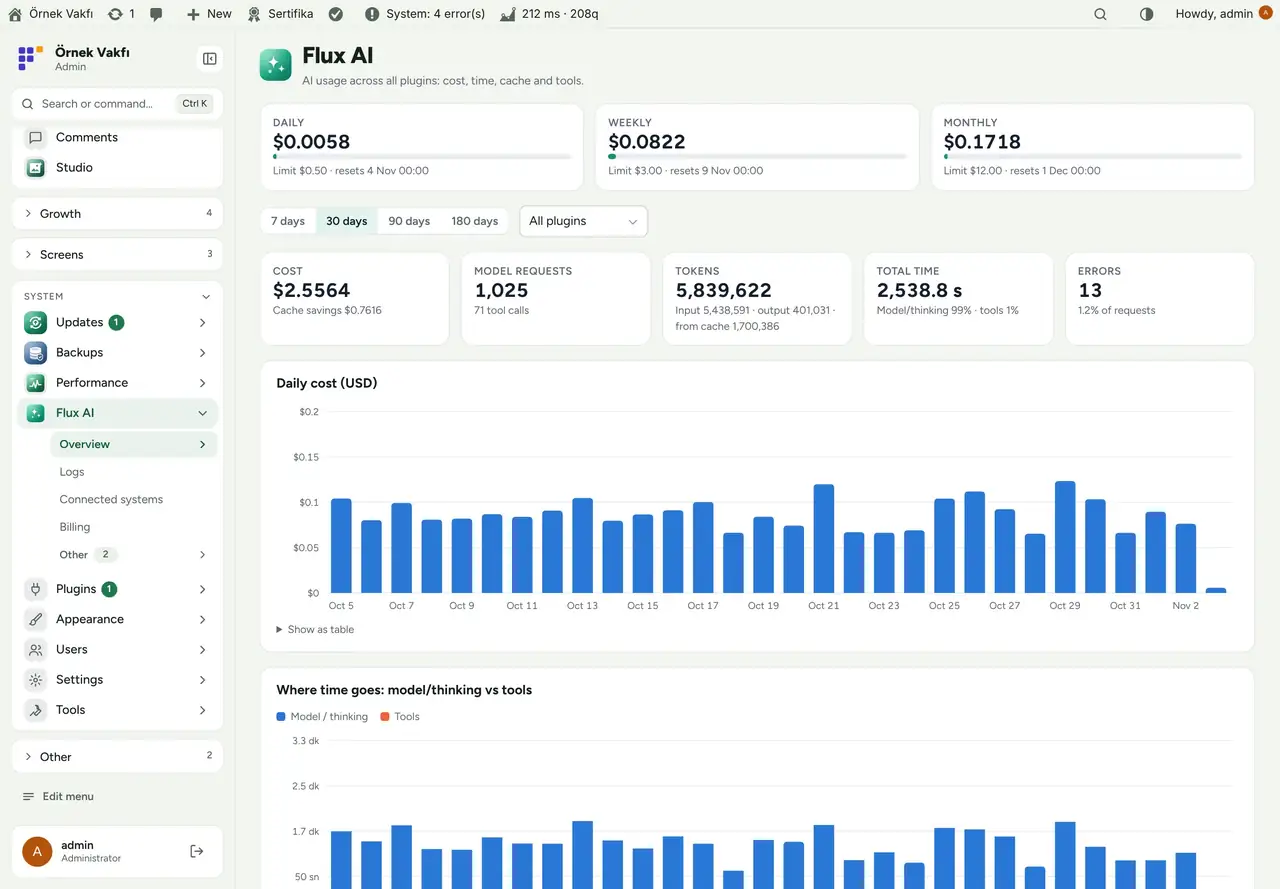
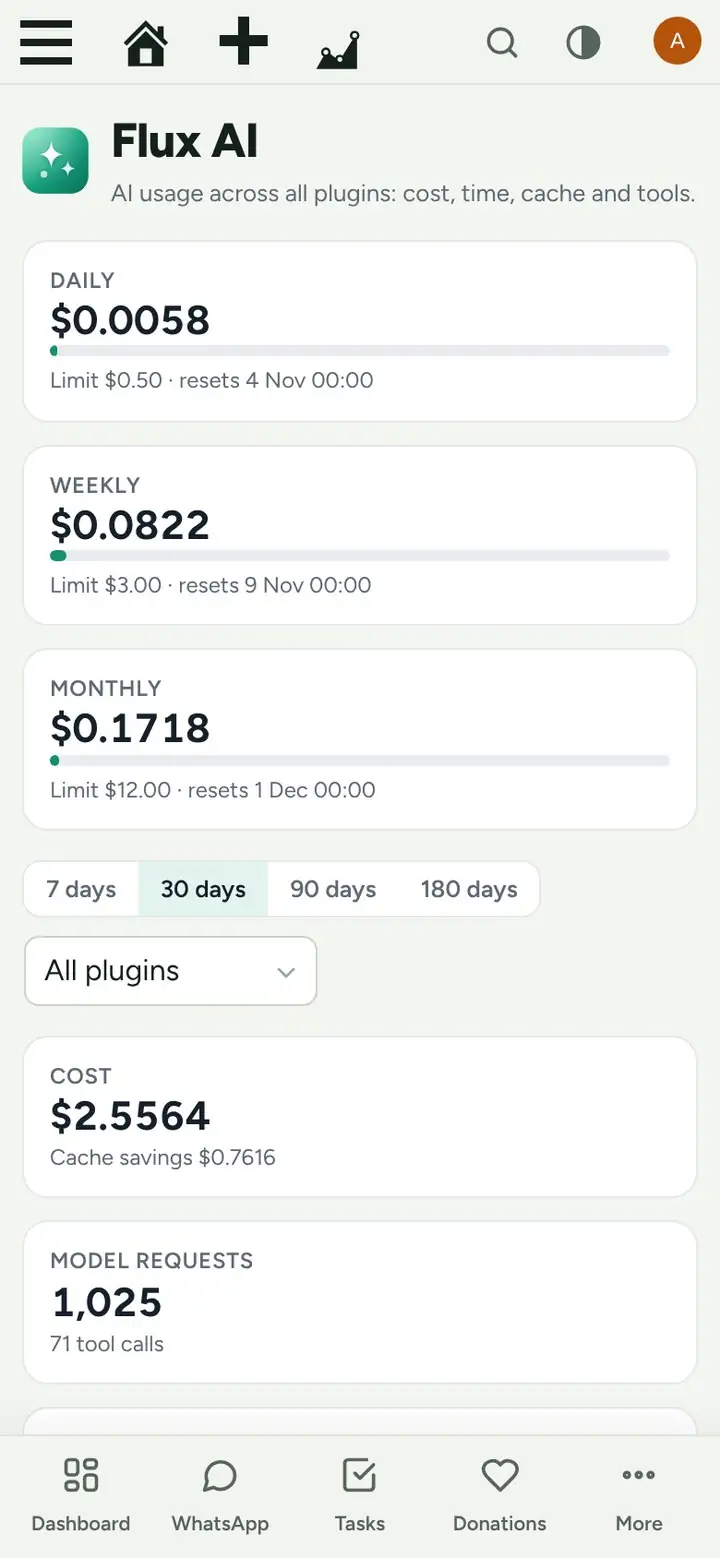
Daily, weekly and monthly limits with a warning threshold; every request logged with tokens, cache, time and cost.
-
One switch per system
See which plugin uses which model, how much it spent and how often it failed, and turn it off without touching its settings.
-
A chat that can act
The shared chat sees the tools other plugins register, asks for approval before changing anything and only shows tools the user is allowed to use.
Flux AI screenshots
Real screens from the demo site. Click to enlarge.
Flux AI features
WordPress AI plugin with Claude, OpenRouter and MCP
Hub for other plugins
flxai_chat()/flxai_complete()with tools, streaming, prompt caching (Claude) and model fallback;flxai_ready(),flxai_model_for(),flxai_budget_status().- Connected systems: each plugin with status, model, 30-day requests, tokens, cost, errors and last use; on/off per system; per-plugin model in Settings.
- Tools: every tool registered through
flxai_toolsor Flux SEO, with source, reads/writes, approval flag, capability, 30-day calls and average time; on/off per tool. - Images in answers: “
widget /“mermaid blocks rendered to PNG through Gotenberg or Imagick. - Image and video generation for Flux Studio through fal.ai, EvoLink, OpenAI, Gemini and OpenRouter (
flxai_media_submit).
Costs and limits
- Overview: daily, weekly and monthly spend against limits, cost, requests, tokens (input, output, from cache), total time split into model vs tools, errors; daily charts for 7 to 180 days, per plugin.
- Billing: month by month with cache savings, per provider, per plugin and per model, CSV download.
- Logs: every model request and tool call (where, who, model or tool, tokens, cache, duration, cost); content stored masked (e-mail, phone, IBAN, keys) and kept 30 days by default.
- Spending limit action: block or only warn, with a warning percentage.
Shared chat
- The AI button in the admin opens a docked or floating chat with chat history, search, model picker, suggestions for the current page and streaming answers.
- Changes need the user’s approval in the chat; stop at any time; edit a message or go back to an earlier point.
- The chat keeps running across page loads.
Up and running in a few minutes
- Activate Flux AI and open Flux AI & MCP › Settings.
- Enter an OpenRouter key (or an Anthropic key), choose the default model and press Test.
- Set daily, weekly and monthly limits.
- Open Connected systems to see which plugins use Flux AI and pick a model per plugin if you like.
Requirements: An OpenRouter or Anthropic API key. Optional: Gotenberg or Imagick for images in answers, fal.ai / EvoLink / OpenAI / Gemini keys for Flux Studio.
Frequently asked questions
Didn't find your answer? Write to us. hello@fluxwp.com
Is Flux AI free?
Yes. Flux AI is free and open source (GPL-2.0-or-later). There is no licence key and nothing is locked; the source code is on GitHub.
How do I install Flux AI?
Install Flux Setup, then press Install on the Flux AI row under Flux Setup › Packages. Updates arrive in the standard WordPress Updates screen.
What does Flux AI need?
WordPress 6.5 or later and PHP 7.4 or later. Shared hosting is enough. An OpenRouter or Anthropic API key. Optional: Gotenberg or Imagick for images in answers, fal.ai / EvoLink / OpenAI / Gemini keys for Flux Studio.
Does Flux AI work with other plugins?
Flux AI works on its own. Installed with other FluxWP plugins it shares the same panel, roles, colours and AI settings, for example with Flux SEO, Flux Studio, and Flux Setup.
Is Flux AI available in Turkish?
Yes. The interface follows the site language: English and Turkish are included, and other languages can be added with a translation file.
Works well with Flux AI
One panel, one look, one settings screen. Add more as you need them.
-

Flux SEO
Content & growthWordPress SEO plugin: meta titles and descriptions, canonical, Open Graph, schema, XML sitemap, IndexNow and an SEO check for every page.
Details -
Flux Studio
Content & growthAn AI image and video studio with references, area editing and a folder gallery.
Details -
Flux Setup
Admin & platformSet up a whole site in one step: plugins, look and starter pages from a preset, with a guided wizard.
Details



Start with one plugin. Grow into the whole toolkit.
Install open source FluxWP on your own server for free, or let us host and set it up for you.